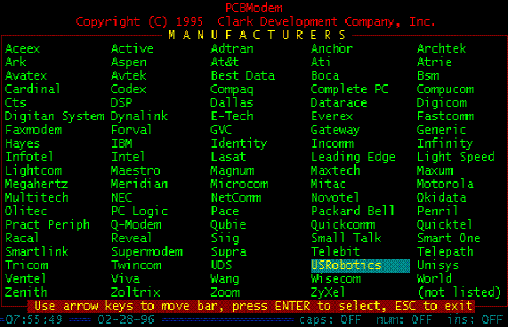
Highlight USRobotics and press ENTER.
Clark Development Company, Inc.
Company no longer in business
PCBoard v15.x for DOS:
DIP Switches: 3, 5, and 8 DOWN(ON)
Run PCBMODEM.EXE found in PCBoard's main directory. You should see the screen shot displayed below.
Highlight USRobotics and press ENTER.
The next screen will contain a list of our modems as shown below:
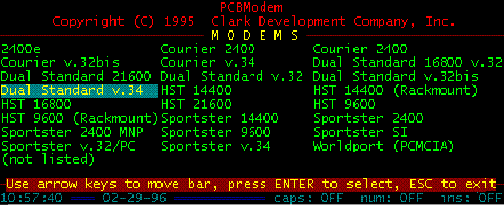
Choose the model closest to the one you will be using with PCBoard.
After selecting your modem, a screen will appear to set the port rate. If you have one of our 14.4k modems, set the port rate to 19200, and if you have a 21.6k or faster modem, set the port rate to 38400 or higher.
After setting the port rate, you have to decide what type of driver support you want PCBoard to use with the modem. The below picture shows a screen shot of the Fossil Driver Menu. We always choose UART based com ports. If you have a problem with doors crashing, or completely failing to run, the door may require a fossil driver. What this means is the designer of the door did not implement their own COM routine into the door, so an external driver is required.
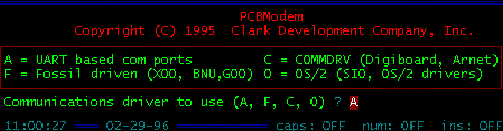
After you pick your Communications driver, choose the COM port number the modem is on, then YES to v.42bis. Next, you will be asked about adaptive fax answering. Unless you have one of our Class 2.0 modems, select NO. You also need a program that supports Class 2.0 adaptive faxing.
| Note: | Class 2 fax should not be confused with Class 2.0. They are not the same, nor are they compatible with each other. Class 2.0 is a fax standard where Class 2 is not. If the software you are using only supports Class 2 fax, it will not work with our Class 2.0 Fax Modems. |
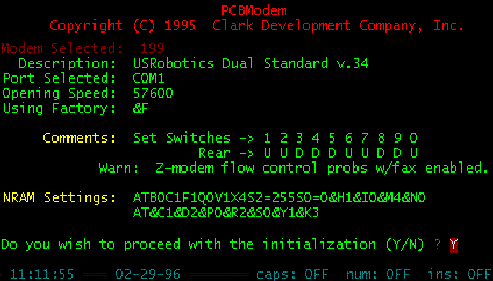
The last part of PCBoard's modem setup is programming the modem with the appropriate init strings. When the software asks if you would like to proceed with the initialization, choose YES as shown above. After the init strings are sent to the modem, hit escape to exit the configuration utility. Your modem is now ready to run under PCBoard.